

Scrivener is great for long-form projects and collections of shorter works, and its features are ideal for creating short story and essay collections.
While Scrivener is the ideal app for writing long-form projects, it’s also a great way to write and manage collections of shorter works. You can use Scrivener for poetry projects, for blogging, and you can also use Scrivener to write and organize collections of short stories or essays. Here’s how.
Setting up Scrivener’s Binder for short stories or essays
Scrivener has about two dozen templates that you can use, each designed for different types of projects. When you choose File > New Project, you see the Template Chooser. Click Fiction, choose Short Story, then click Create. Name the project, and when you open it, it looks something like this:
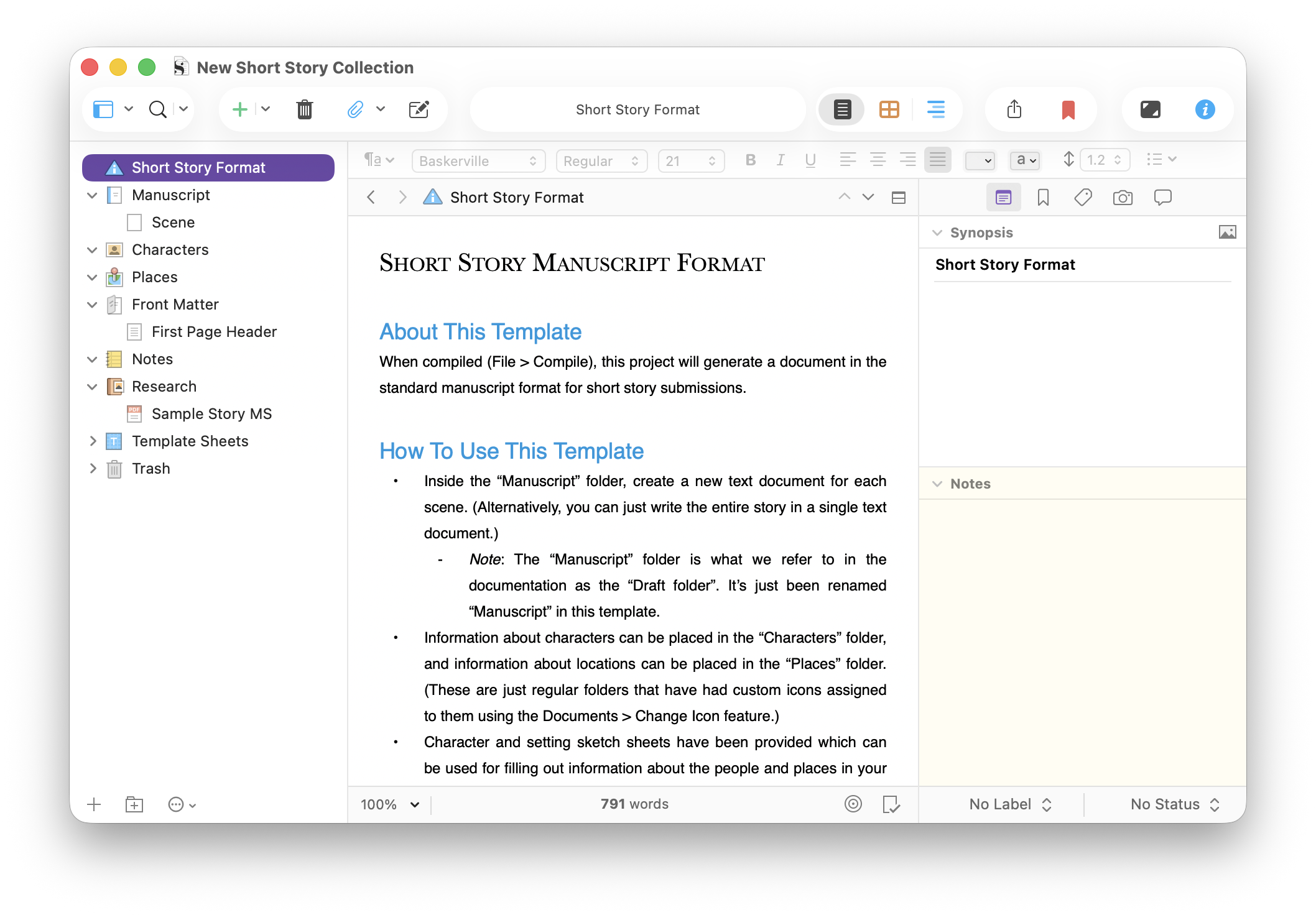
This project is ideal for any collection of short writing: stories, essays, flash fiction, or novellas. The Short Story Manuscript Format document at the top of the Binder tells you a bit about this project and how you can use it.
All Scrivener projects work the same, and you can learn about ways to use the Binder to organize your project in this article. For short stories or essays, there are two ways you can work in the Binder.
The first is to create individual files in the Manuscript folder for each story. This template has one file, labeled Scene. If you want to write each story in a file, you can work in this existing file, renaming it, and you can create new files by choosing Project > New Text.
Another method is to create a folder for each story. This allows you to build stories with multiple documents, one for each scene or section. You can add folders by choosing Project > New Folder, then add new text files to each folder. This approach looks something like this:
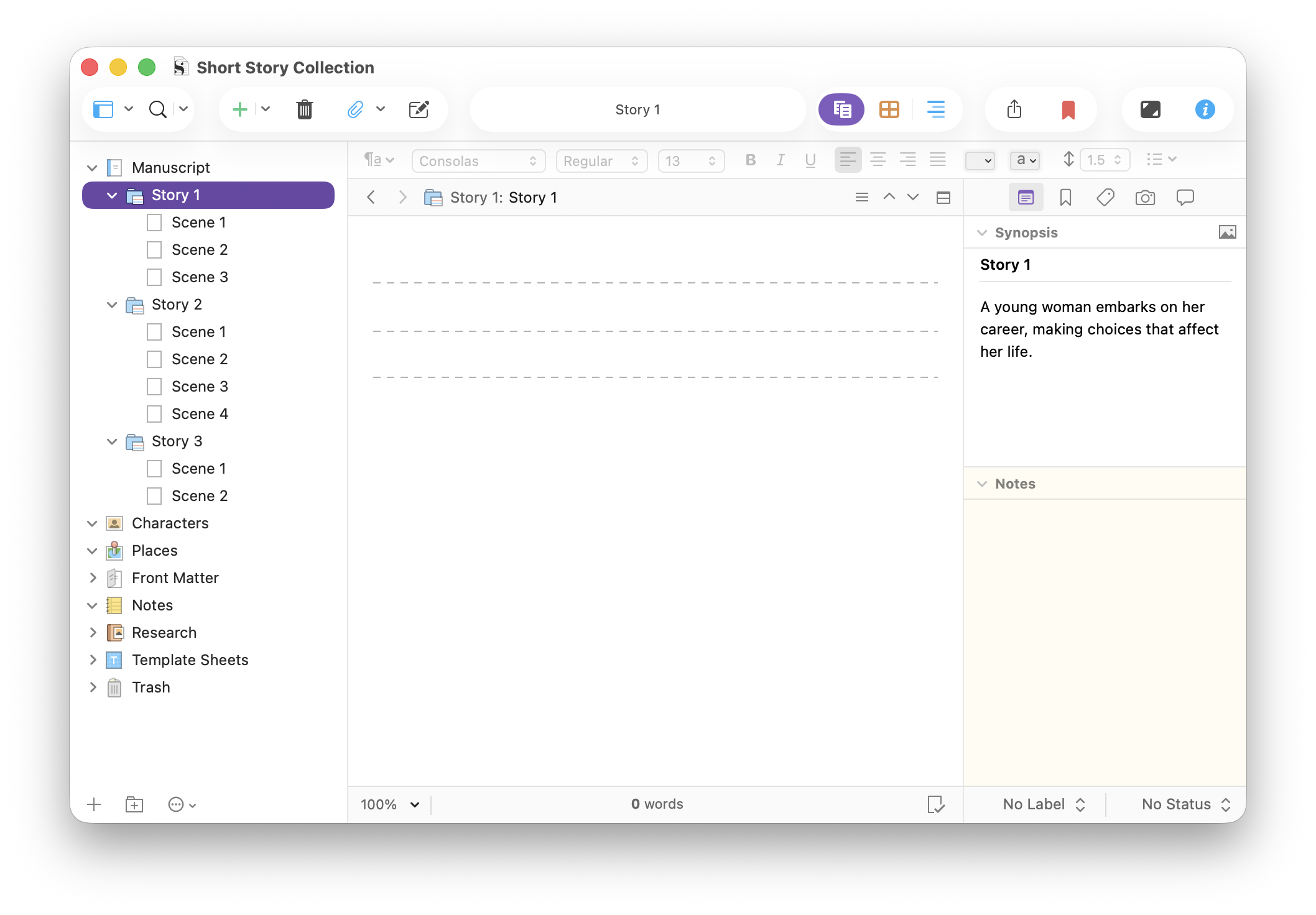
As you work, you can leverage all of Scrivener’s features, such as using its Research folder to store notes and background information, tracking word counts, statistics, and targets, and to really focus on your writing, you can use some of Scrivener’s features for distraction-free writing.
Revising and editing short stories or essays
When you reach the revision and editing stage, you have many ways to work with your stories or essays. When you begin revising or editing files, you should take snapshots. These are backups of individual files, and this allows you to go back to older versions if you want to revert any changes or edits you’ve made to them.
Scrivener’s revision mode can help you as you edit your files. And as you read through edited versions of your stories or essays, you can add annotations and comments to make notes about changes you want to make.
Sequencing a short story or essay collection
When creating a collection of short stories or essays, it’s important to put them in an order that creates a compelling reading experience. This could involve alternating different story types, or arranging them so the reading experience builds as the collection progresses. You might want to arrange essays in chronological order or arrange them by theme or topic.
Use the Synopsis field in Scrivener’s Inspector to write a short description of each story or essay. This makes it easy to view the sequence of your collection in Scrivener’s Outliner and Corkboard. You can rearrange the order of your stories or essays by dragging them in either of these interfaces.
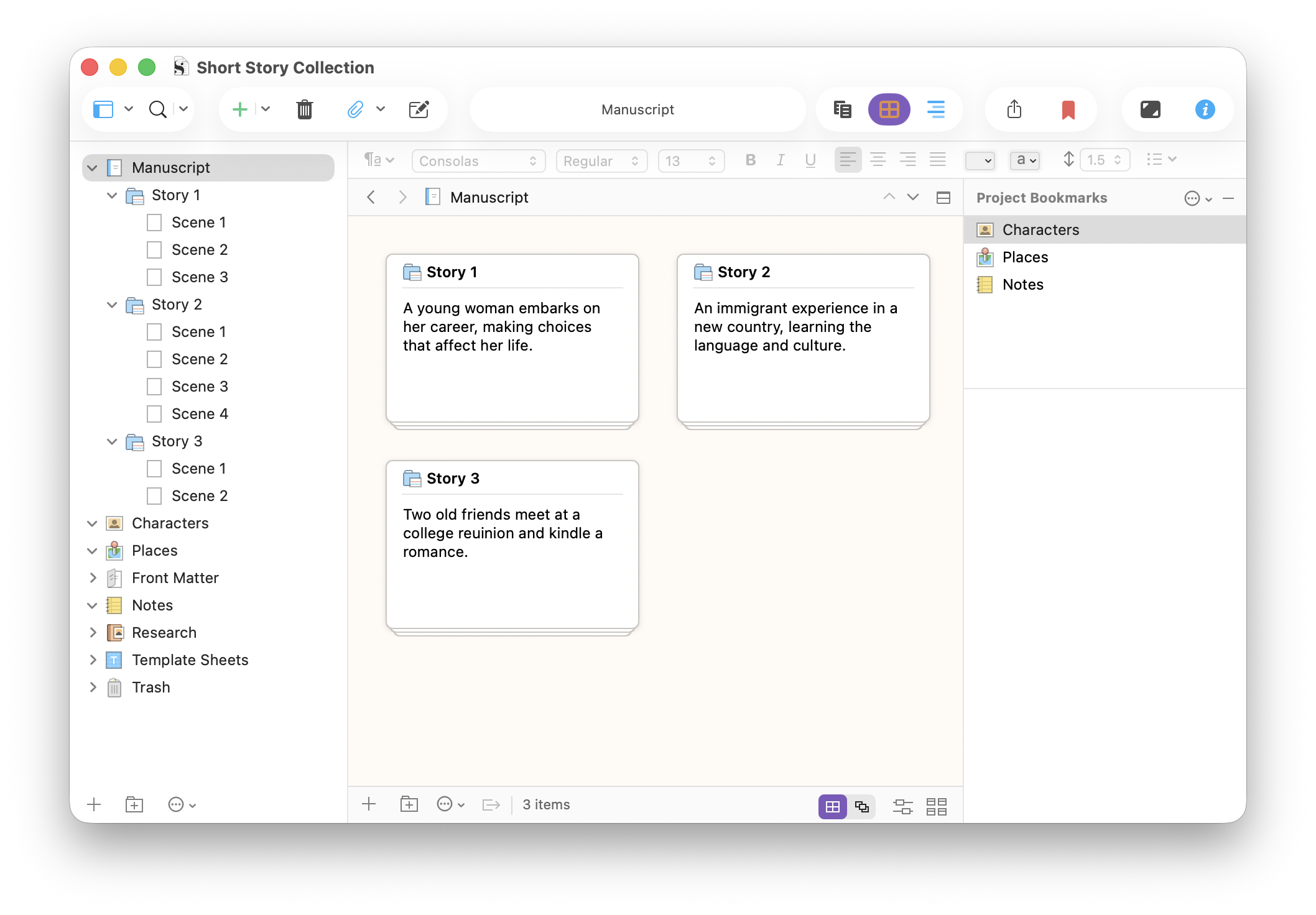
You can then use Scrivenings mode to read through the entire collection to see how the it flows.
Managing a short story or essay collection
Managing your collection involves keeping track of the state of each text (first draft, revised, final draft, etc.), and you can do this using Scrivener’s Status marks. You can also use labels to mark them, indicating their state of completion, revision, or submission.
And if you write a lot of stories or essays, you can set up a submission tracker in Scrivener, leveraging labels and status marks, and adding custom metadata to track each item’s state.
Compiling a short story or essay collection
Compiling is the final stage of preparing your collection. You compile your project before sending it to a critique partner, agent, or editor. Scrivener stitches together all your stories or essays in one document, either a text file in one of many formats, or a PDF.
The Short Story template includes some compile settings specific to this type of project. To compile your collection, it helps to assign section types to your project. You can access this in Project > Project Settings:
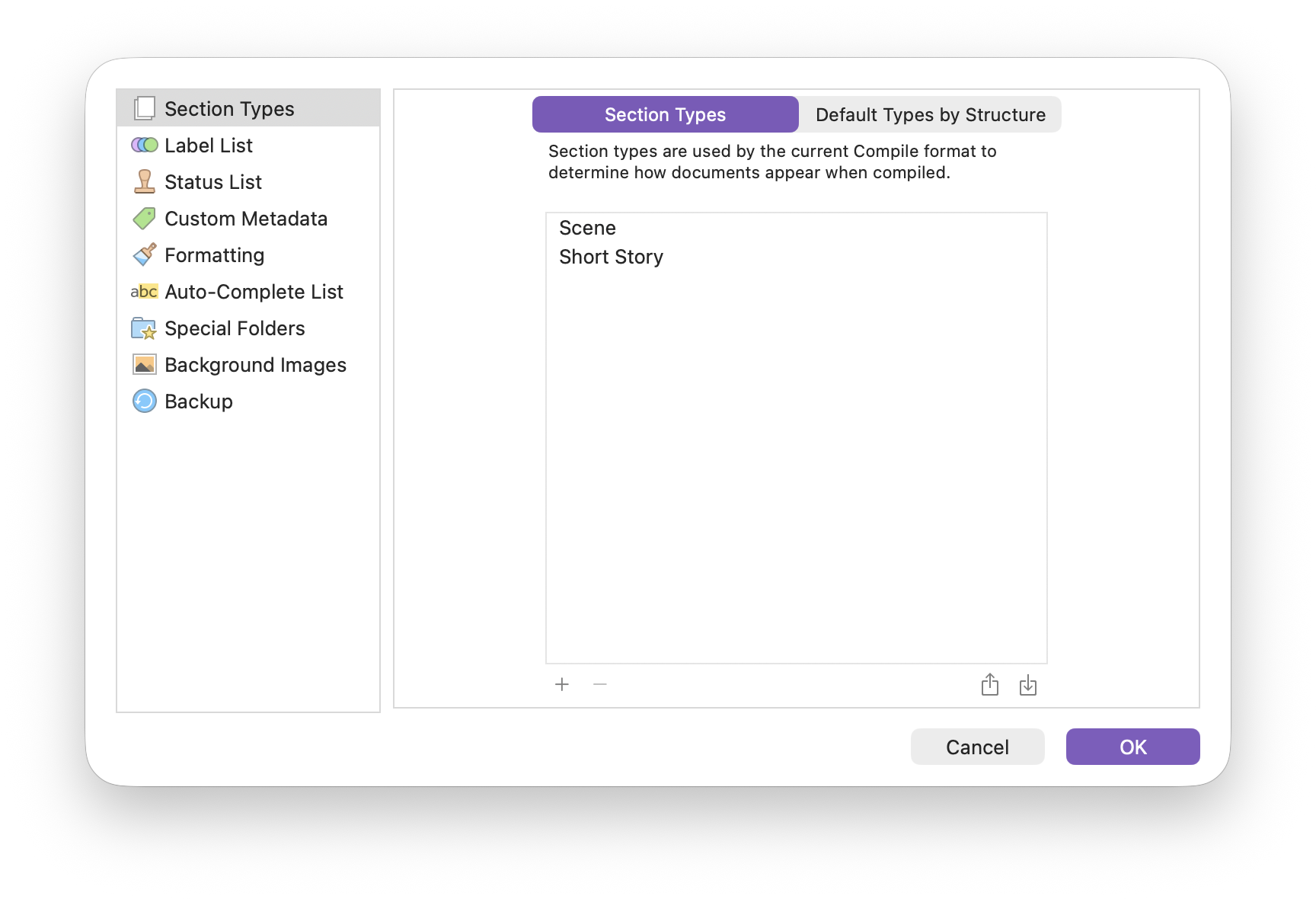
You access the Compile screen by choosing File > Compile. As you can see in the sidebar in the screenshot below, there are two Short Story formats in the Compile screen. After you’ve set up the Short Story section type, click the popup next to each story folder in the right hand pane of the Compile screen and assign that section type:
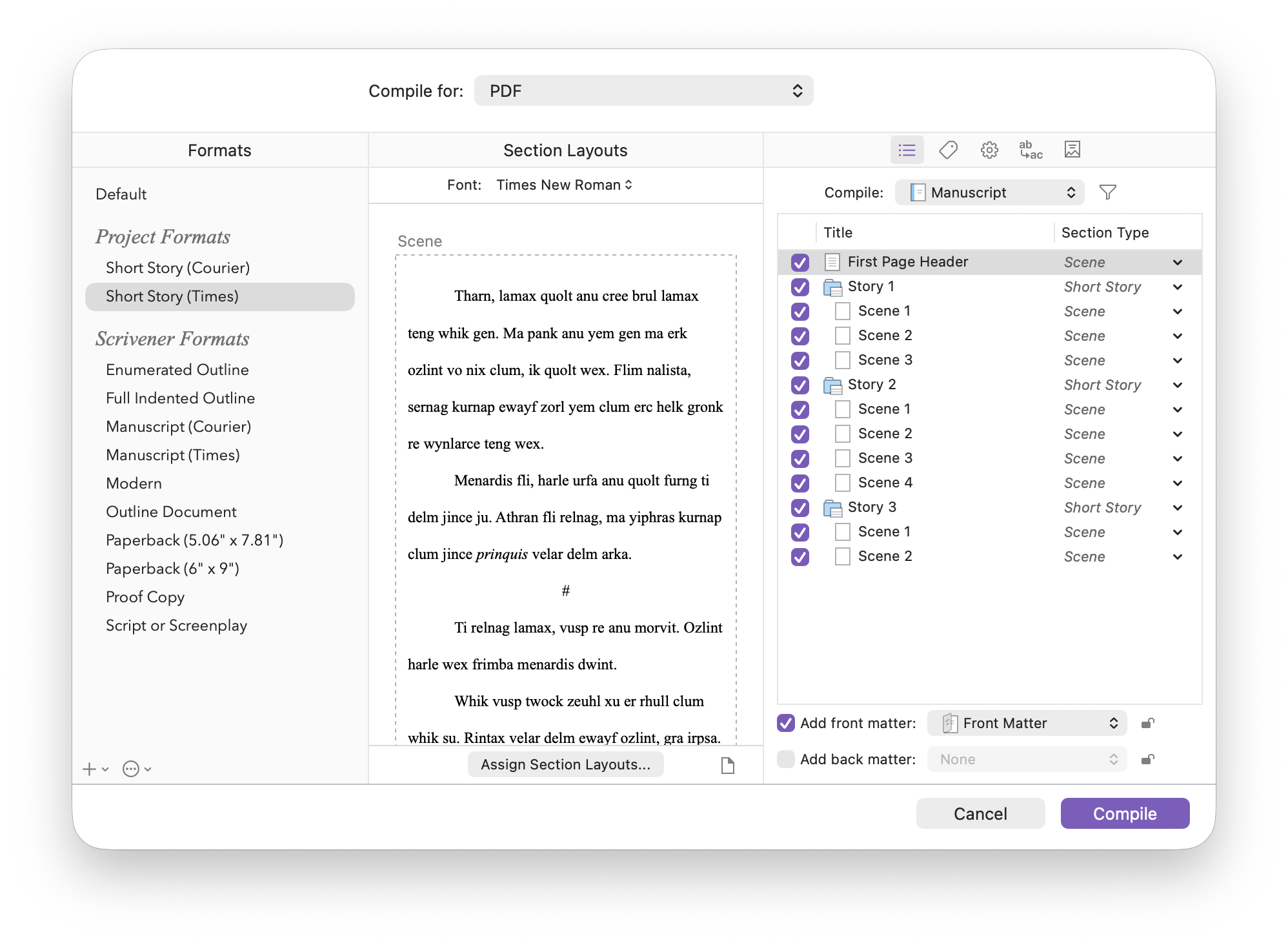
This tells Scrivener that each folder in the above example is a story and each file within those folders is a part of that story. When compiling, Scrivener then knows to put these items together, with page breaks before each story.
If you’re preparing a short story or essay collection for publication, Scrivener can compile it in an ebook format. This process allows you to add a cover, front matter, metadata, and more, to produce a deliverable ebook file that you can upload to retailers.
While there’s not much difference working with short stories or essays compared with, say, a novel or non-fiction book, some of Scrivener’s features, and its specific short story template, make the process a bit easier.
Kirk McElhearn is a writer, podcaster, and photographer. He is the author of Take Control of Scrivener, and host of the podcast Write Now with Scrivener. He also offers one-to-one Scrivener coaching.