

From writing and organizing to revising and preparing a poetry collection for submission, Scrivener is a great tool for working with poetry.
Scrivener’s main feature is its ability to help you write, revise, and edit long-form writing projects. But it’s also great for managing short works such as poems. There’s a special poetry template available in Scrivener, and the many tools available in Scrivener, from organization to compiling, make it perfect for working with a poetry collection.
Creating a poetry project in Scrivener
Scrivener includes about two dozen templates, one of which is designed for a poetry collection. Choose File > New Project, click Miscellaneous, then click Poem.
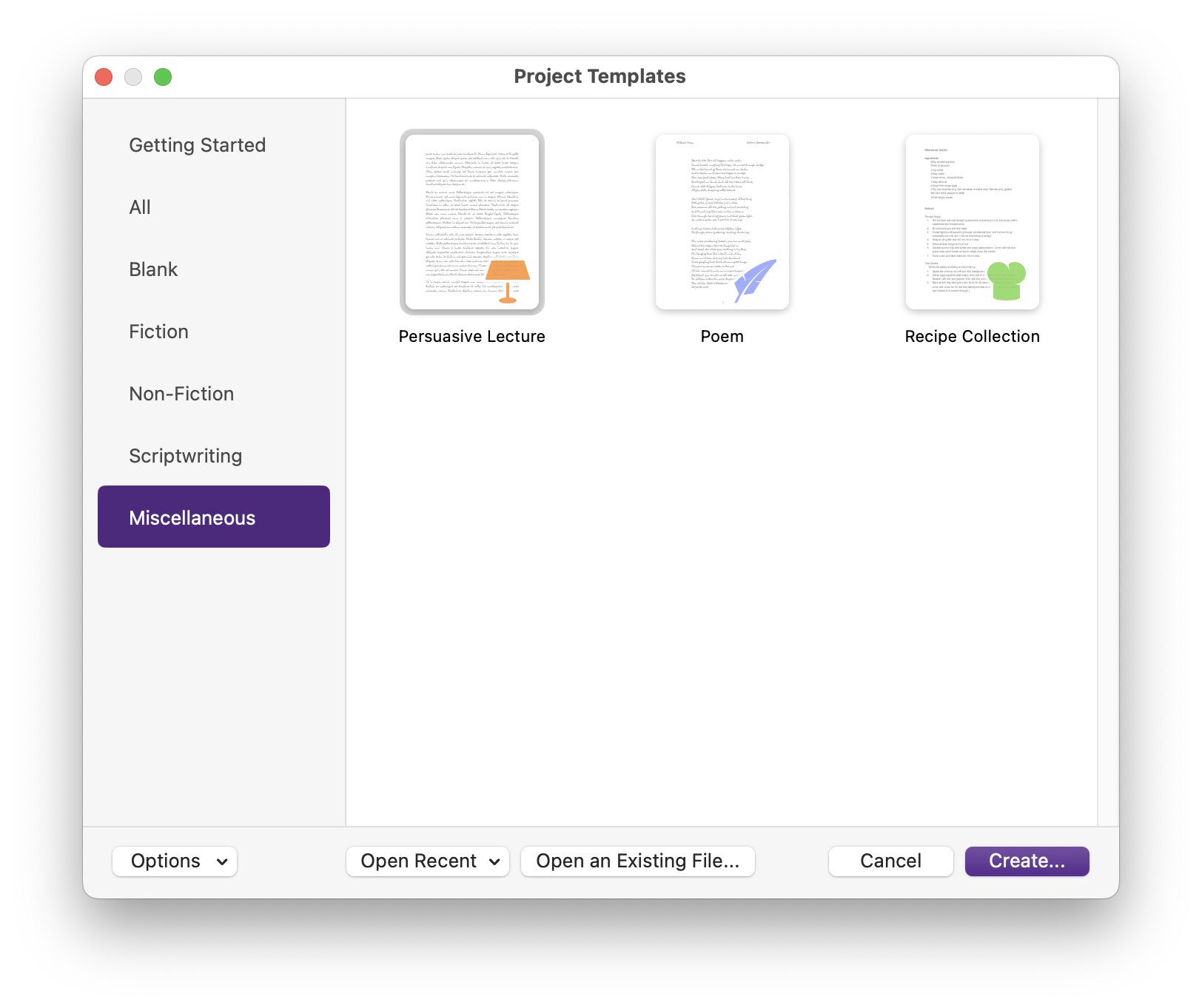
Click Create to have Scrivener create the project. It looks like this:
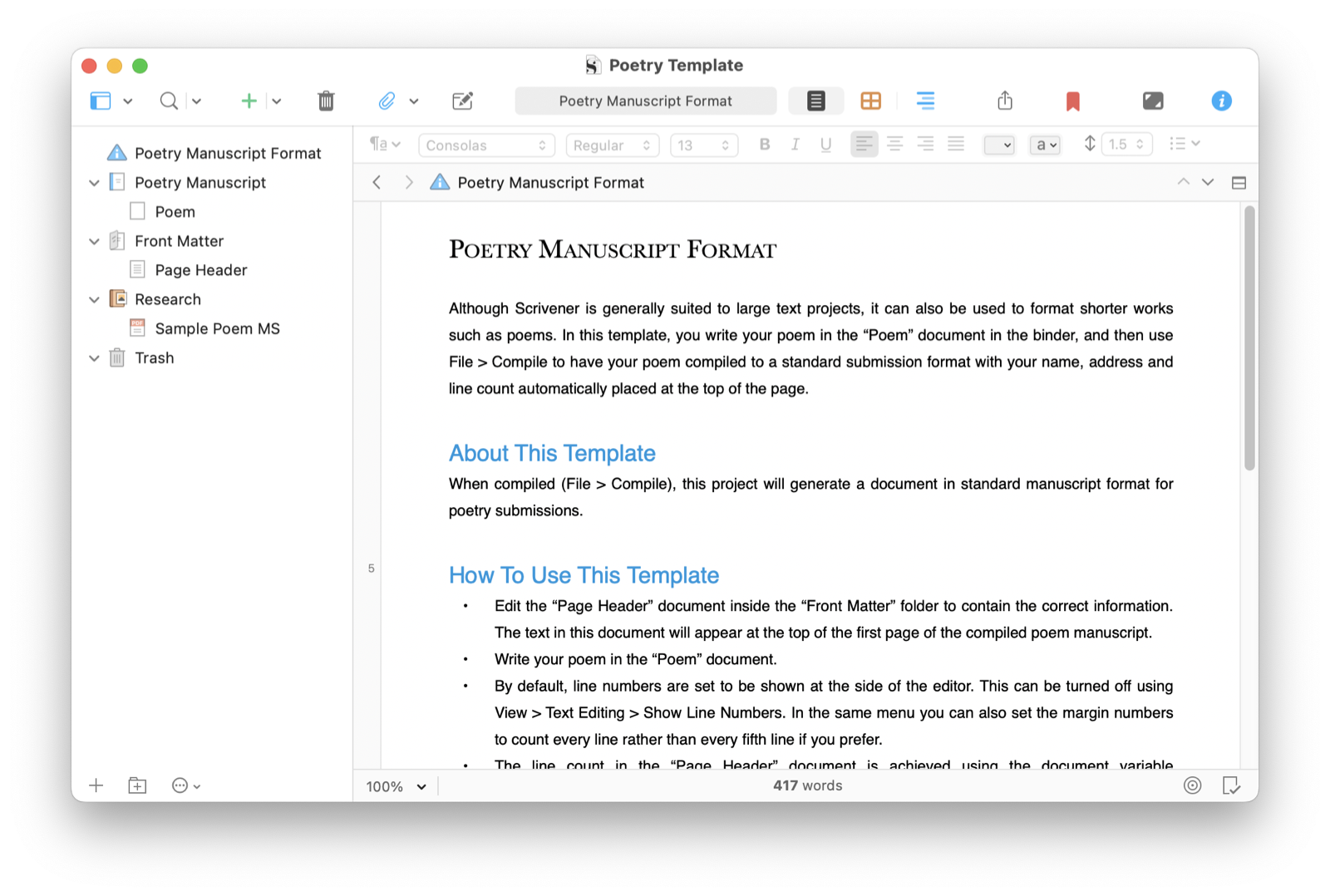
The first file, Poetry Manuscript Format, tells you a bit about the template and how you can use it. After you’ve read this, you can move it to the Trash.
What’s special about the Poetry Manuscript template?
Scrivener’s Poetry Manuscript template differs from its other templates in several ways. First, the top-level folder is named Poetry Manuscript, instead of Draft or Manuscript, as in other templates. You can, of course, rename this by double-clicking it and typing a new name, such as the name of your poetry collection.
The first file in that folder is labeled Poem; it’s the same text file as in other templates, where there is first a folder labeled Chapter (for the Novel template) or Act (for scriptwriting templates), and where files are labeled Scene. None of these names change the way the files work; they just help you think about your project and what it contains.
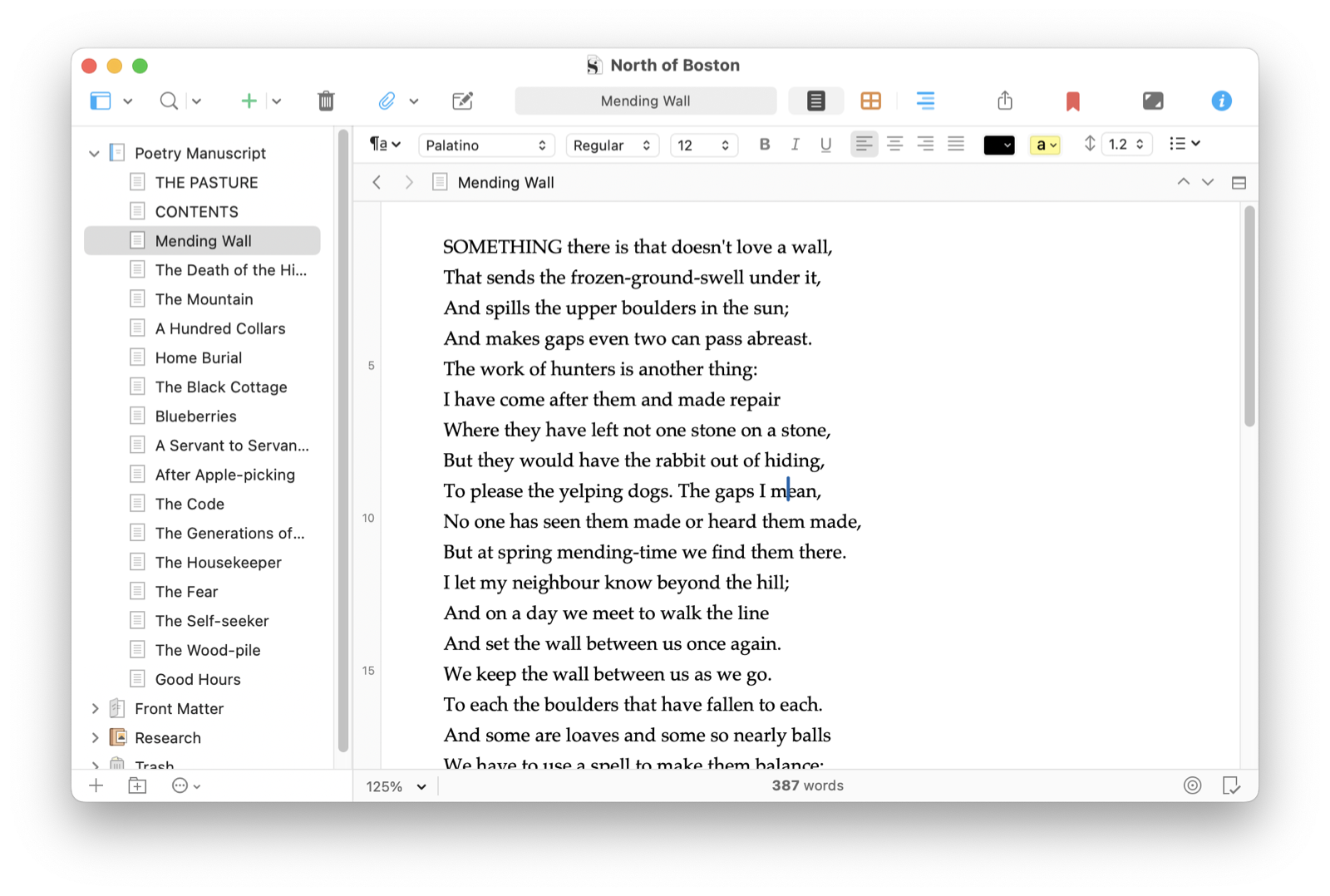
The Poetry Manuscript template also has line numbers displayed in its text files by default. These numbers display every five lines, as you can see here:
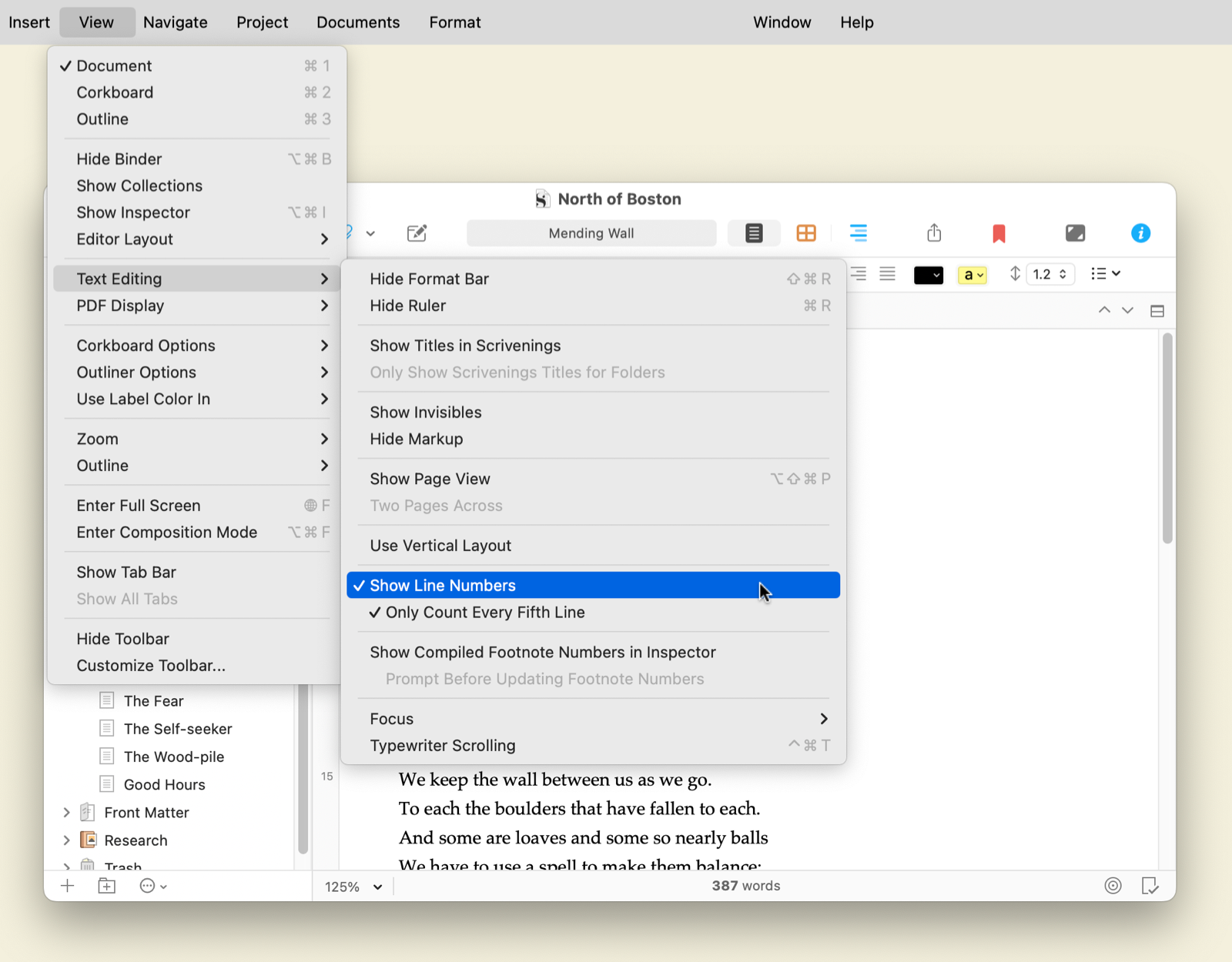
You can turn these line numbers off or change them to display for each line in the View > Text Editing submenu.
Finally, a number of compile settings are built into the template to make it easy to compile a poetry manuscript for export in formats such as PDF, .docx, and others; see below.
Write and organize poems
In the top-level Poetry Manuscript folder, there’s an empty text file labeled Poem. You can start writing in this file, or you can create new files and folders in the Binder to organize your project. See Use Folders and Texts to Power Up the Scrivener Binder for the basics of using Scrivener’s Binder.
As you create new files and write new poems, you can move them around easily in the Binder. This allows you to sequence your poetry collection, making changes as you write new poems and revise existing poems.
You can also use Scrivener’s Corkboard and Outliner to view your poems. This gives you a high-level overview of your work. For example, by default, the Corkboard displays the title of each file as well as the beginning of its text. This allows you to see the first lines of your poems, which can make it easier to see how you want to arrange them.
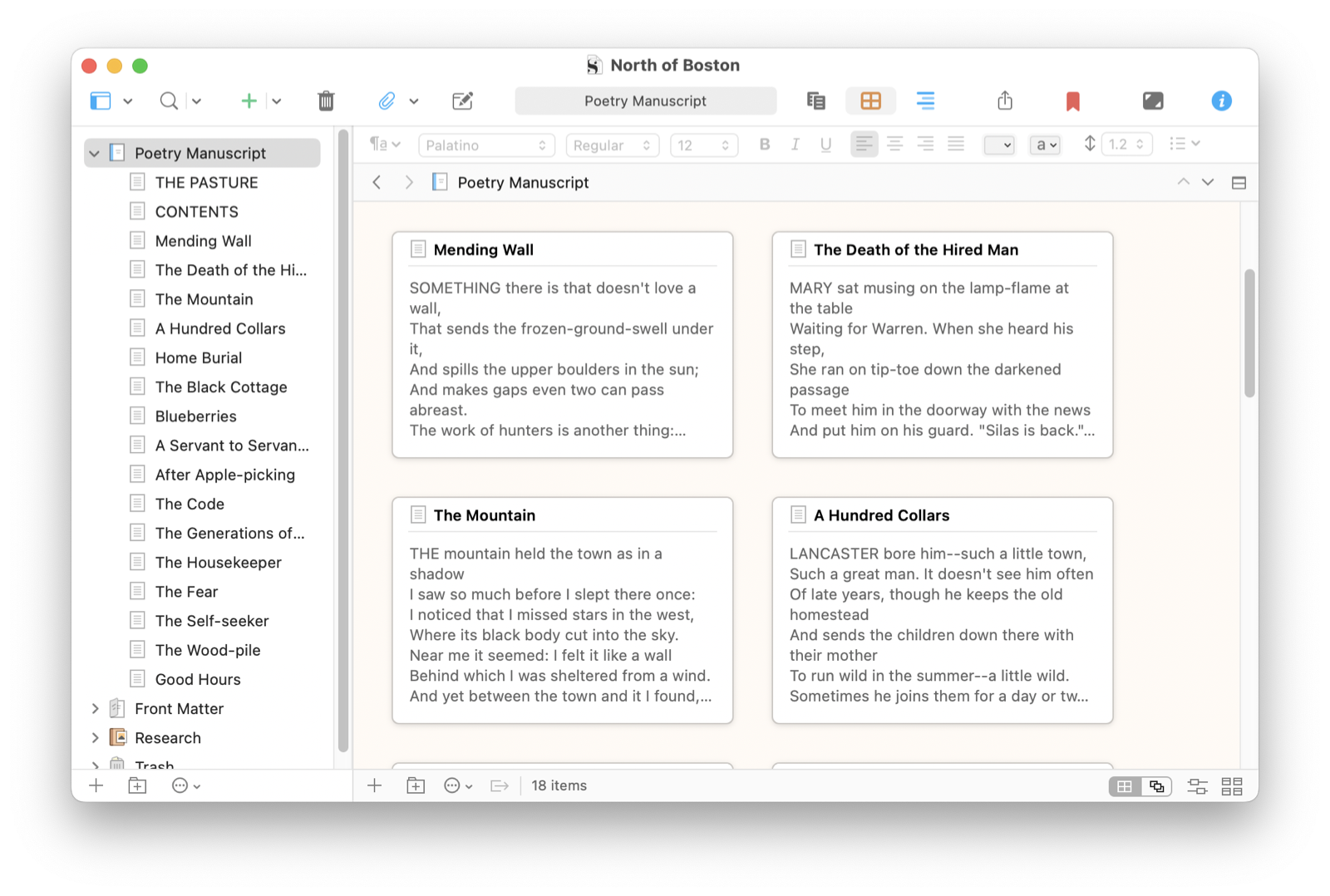
Alternately, you could manually write synopses for each of your poems, specifying their themes or summarizing their images. If you create synopses for your files, they display instead of the first lines, as above.
Revise and edit poems
For many poets, poetry is created in the revision process. Since poems are shorter than stories or novels, they lend themselves to multi-layered revision. Donald Hall says, “Revising, I go through a whole manuscript over and over and over. Some short prose pieces I’ve rewritten fifteen or twenty times; poems get up to two hundred fifty or three hundred drafts.” And many other poets have spoken about the importance of revising poetry.
You can revise your poems by writing over them, but with Scrivener, you can create snapshots, or copies of files at a specific time. By doing this, you can go back and look at your previous versions when revising. See Use Snapshots in Scrivener to Save Versions of Your Projects to learn how to use snapshots.
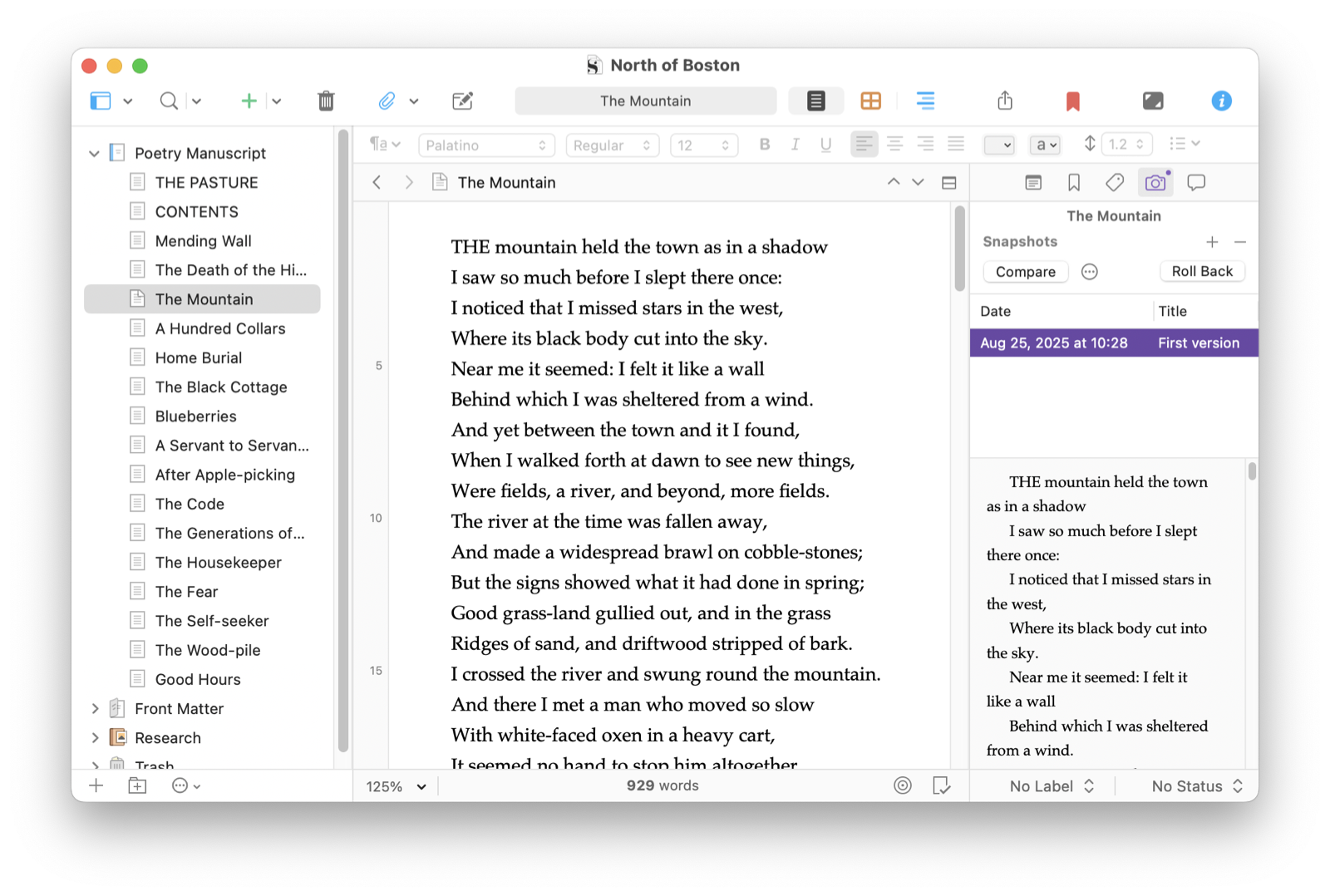
You can also use label or status marks to indicate the state of each poem in your project. These display in different ways in the Binder, Corkboard, Outliner, and Inspector. You could use colored labels to indicate the state of each poem, or create custom status marks for first draft, second draft, and so on.
Compiling your poetry manuscript
Compiling a Scrivener project is the process of stitching it together and exporting it as a single file. In most cases, this will be a PDF or .docx file that you’ll send to an agent, editor, or publisher.
Scrivener’s Poetry Manuscript template is set up to make compiling this type of project simple. Choose Edit > Compile, and you see this screen:
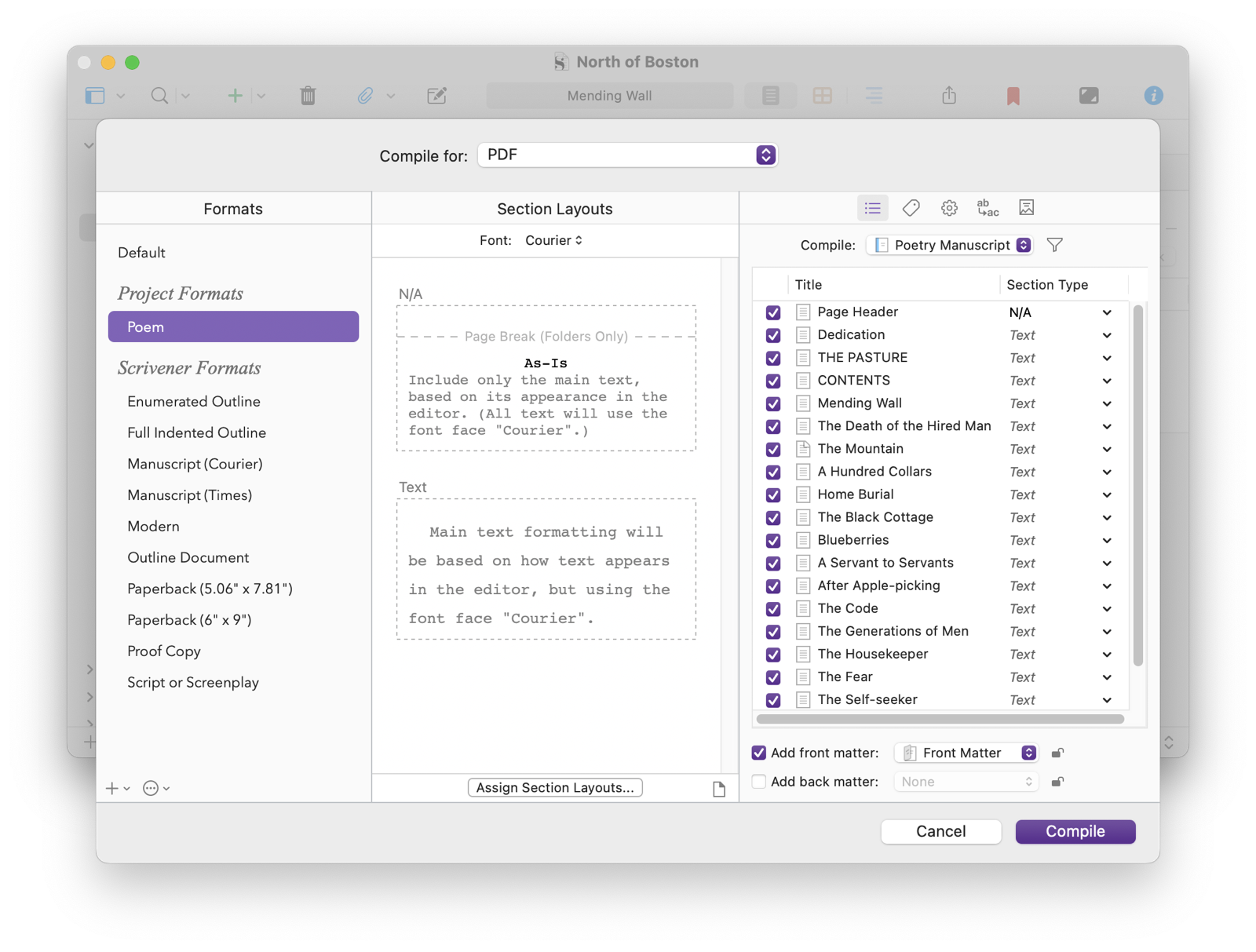
As you can see in the sidebar on the left, Scrivener is using formatting for Poems. In the list on the right, you see all your poems. They all have section types of text, and in the middle pane of the screen, you can see that Text section types use the formatting in the Editor, but changing the font to Courier, which is appropriate for poetry submissions. This ensures that the compile process doesn’t change any of the layout or line breaks in your poems. (See Using Section Layouts to Compile Your Scrivener Project to learn more about section layouts.)
Scrivener can also add front matter, which is any files you have in the Front Matter folder in the template. In this example, the Font Matter folder contains a file with a dedication.
In most cases, you won’t need to change anything in the Compile dialog. In the Compile For menu at the top, choose the format you want to use: PDF, .docx, plain text, or one of the others. Then click Compile and Scrivener exports your poetry manuscript.
All these features make Scrivener an excellent tool for writing, revising, organizing, and preparing a poetry collection for submission.
Kirk McElhearn is a writer, podcaster, and photographer. He is the author of Take Control of Scrivener, and host of the podcast Write Now with Scrivener. He also offers one-to-one Scrivener coaching.