

Unlike most apps these days, Scrivener does not use AI in any way. However, if you’re on a Mac, you may see an AI prompt. Here’s why.
It seems like every app these days wants to force AI onto its users. Productivity apps, such as word processors, spreadsheets, presentation apps, and note-taking apps; creative apps such as photo editors and design tools; and even operating systems, like Windows and macOS. No matter which apps you use, it’s hard to avoid AI anymore, unless you use Scrivener.
Scrivener and AI
As Literature & Latte, the developer of Scrivener, points out in the support document Does Scrivener use AI?, “Scrivener itself contains no artificial intelligence (AI).” Scrivener is designed for creative writers to create, not to have a data center create for them.
In addition, many apps snarf up your words and use them to train their AI models, after having ingested your published books. Again, Literature & Latte addresses this: “Scrivener does not do anything with your text in the background that would cause it to be sent anywhere from your machine to any other server.”
Unlike web apps like Google Docs or Office 365, everything you write in your Scrivener projects stays on your device. You may sync your Scrivener projects via a cloud service such as Dropbox, iCloud, or OneDrive, so you can access them on multiple devices. But Scrivener itself does nothing with the text in your projects. (See Dropbox AI Principles, Apple Intelligence and privacy on Mac, and Privacy, security, and compliance in Microsoft OneDrive for information on how these services treat your personal data.)
But I’ve seen AI prompts in Scrivener…
If you use Scrivener on a Mac running macOS 15 Sequoia or macOS 26 Tahoe, these versions of the Apple operating system contain Apple Intelligence, a suite of AI tools that are available in every app. (Apple changed the naming of its operating systems in 2025 to use the coming year, so macOS 15 was released in 2024, and macOS 26 in 2025.) Even though Scrivener doesn’t use any sort of AI, there’s no way to exclude these features from the app.
You may see an icon like this in the border of Scrivener’s Editor next to selected text. It looks a lot like the icons of generative AI apps:
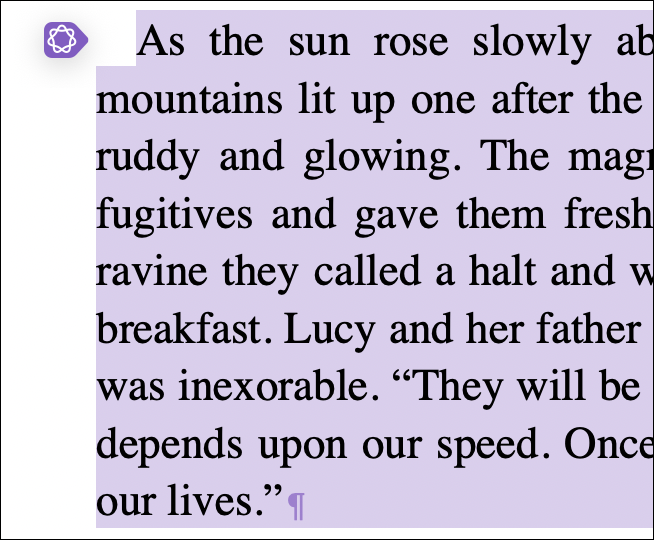
It is the Apple Intelligence writing tools icon. Click it, and you see this menu:
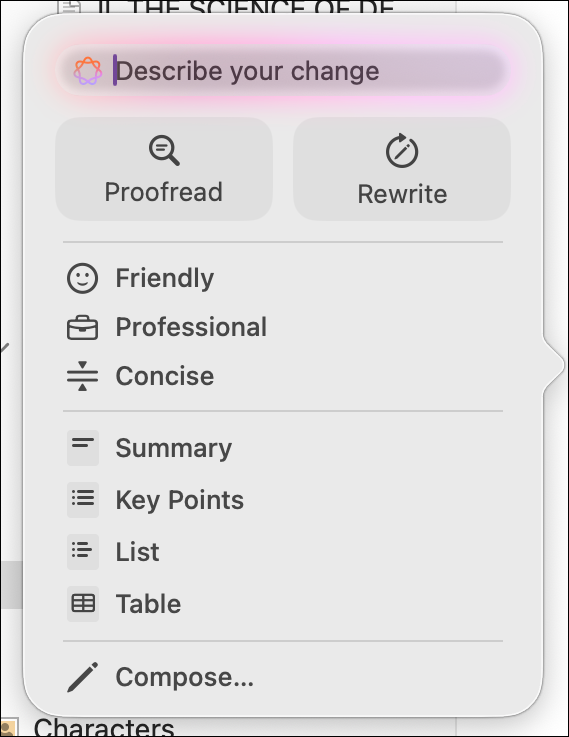
As the menu shows, you can use these tools to proofread or rewrite texts, summarize them, make a list of key points, and more. The Compose item at the bottom of the menu lets you ask ChatGPT to create new texts. Surely, you don’t want to do this in your manuscript…
These tools are also available in any Mac app by choosing Edit > Writing Tools. You may recall earlier versions of Scrivener having a Writing Tools submenu in the Edit menu. This allowed you to look up words, search the web, or use Scrivener’s name generator, which is described in How to Manage Your Characters in Scrivener. These Scrivener features have been moved, because of the new Apple menu, and now appear in Edit > Reference tools.
What about Scrivener on iPad or iPhone?
Same deal; Apple Intelligence will rear its head on those devices as well. The menu is a bit different, but the feature set is the same.
How can I get rid of Apple’s AI prompts in Scrivener?
As mentioned above, Scrivener cannot exclude these tools from the app. But you can turn off Apple Intelligence on a Mac running macOS 15 Sequoia or macOS 26 Tahoe, or on an iPhone or iPad running versions 18 or 26 of iOS or iPadOS.
On a Mac, go to the Apple menu, then choose System Settings. Click Apple Intelligence & Siri in the sidebar, then toggle off Apple Intelligence.
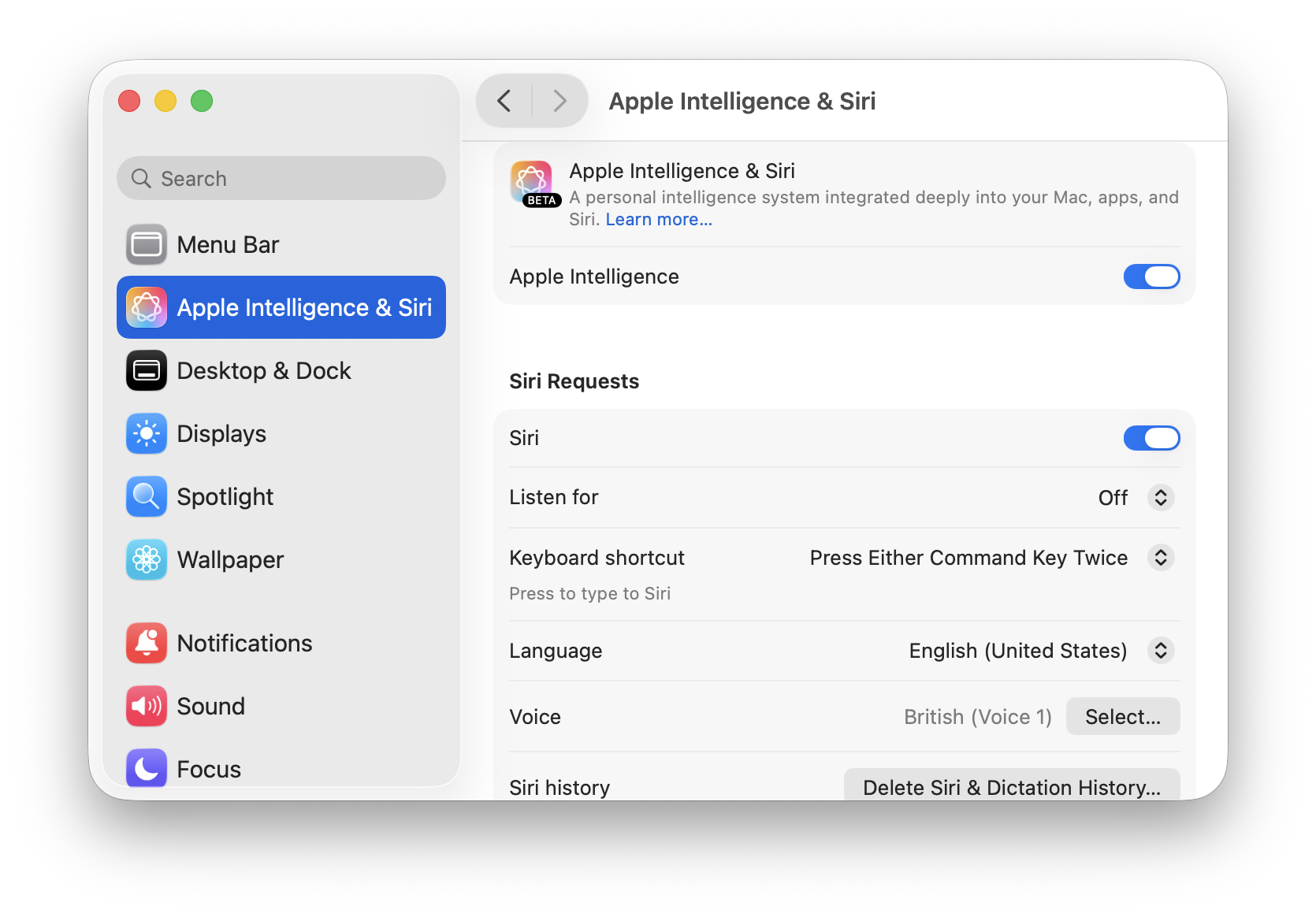
On an iPhone or iPad, go to Settings, tap Apple Intelligence & Siri, then turn off Apple Intelligence.
Turning this feature off globally turns off many useful features, such as message and phone call translations, Image Playground and Genmoji, webpage summaries in Safari, and notification summaries. Many of these tools are useful, and don’t use generative AI – that is, AI that creates – but use AI to summarize texts or alter images.
If you want to use these Apple Intelligence features, you can just ignore the occasional prompts in Scrivener. And remember that Scrivener is there for you to write, to create, to use your imagination. Not to have some machine write for you.
Kirk McElhearn is a writer, podcaster, and photographer. He is the author of Take Control of Scrivener, and host of the podcast Write Now with Scrivener. He also offers one-to-one Scrivener coaching.