

If you want to view the word count of your Scrivener project, or of individual documents, there are several ways to do so.
Size doesn’t always matter, but when you’re writing, word counts may be important. If you’re writing an article, you may have a word count target that you need to meet; if you go under, or go over by too much, your editor won’t be happy.
If you’re writing a short story for submission to a contest, there may be a word count limit. And if you’re writing a novel or non-fiction book, you may have contracted with a publisher to deliver a manuscript around a certain number of words.
Or you may be working on a book and want your chapters to be around a certain length. If most of your chapters are 2,000 or 3,000 words, you don’t want too many chapters that are, say, 5,000 words, or less than 1,000 words.
Finally, you may simply use word counts for motivation and validation. Watching your word count increase at each writing session is evidence of progress and can help spur you on to complete your project.
Scrivener has several ways that you can see word counts for your entire project or for individual files. Here’s how.
1. View document word count in the Scrivener footer
The quickest way to see the word count of the document you’re working on – or any document selected in the Binder – is to look in the footer, just below the Editor. Glance at the number that displays, or click it to see more detailed statistics.

If you’ve set a target for a document (see Track Statistics and Targets in Your Scrivener Projects), then the display in the footer is a bit different. You see the current word count, a slash, then the target. To the right, you see a colored bar that shows you how far along you are toward your goal. This bar is blue if you are below your target, and turns green when you reach the target.

2. View project word count in the toolbar
You can easily see the total word count for your project. Hover your cursor over the Quick Search box in the toolbar; this shows the title of the current document until you move your cursor there. When your cursor goes over the box, the display changes.

As you can see above, this shows two word counts separated by a slash. The first word count is the current project total. The second word count, 50,000 in the screenshot above, is a project target. The colored line at the bottom of the Quick Search box shows your progress toward that target, and is visible even if you don’t hover your cursor over that area. The third number, 0 in the example above, is progress toward a session target; there are no session targets set in this project.
If you do set a session target in Project > Show Project Targets, the display is different. The line at the top of the Quick Search box shows the project target progress, and the session target progress is represent by the line at the bottom of the box.

To learn about session targets, see Track Statistics and Targets in Your Scrivener Projects.
3. View detailed project statistics
To view more detailed statistics about your project, choose Project > Statistics.

The panel that displays shows statistics such as your project’s word count, the number of paragraphs, sentences, and documents it contains, their average length, and more. It also gives you an estimate of the number of pages your book will be; you can set the number of words per page by clicking the Options tab in this panel.
4. View detailed document statistics
In the screenshot above, you there are three tabs in the statistics panel. The first, Compiled, counts all the documents that are in your top-level Draft or Manuscript folder and that you have set to be compiled. (See Compiling Your Scrivener Project: The Basics.) If you select one or more documents in the Binder, choose Project > Statistics, then click the Selected Documents tab, you see these same detailed statistics for the selected documents.
5. View word counts on the Corkboard
You can see word and character counts when viewing the Corkboard. Select one or more cards, then right-click; the word count displays at the bottom of the contextual menu.

6. View word counts in the Outliner
There are two ways to view word counts in the Outliner. The first is the same as with the Corkboard; select one or more documents, then right-click to see the word count at the bottom of the contextual menu.
The second involves displaying certain columns in the Outliner. You can see word counts like this:

Above, there are two columns: Words and Total Words. Words shows the word count for each document, and Total Words for all the documents in a folder, as you can see for the two folders in the screenshot.
To display these columns in the Outliner, right-click on the Outliner header and choose the columns you want to display. In the screenshot below, the visible columns have check marks in front of them.

You can then drag the columns in the Outliner header to rearrange them.
7. View Writing History
You can also view your overall writing history. While this doesn’t show word counts for each document, it does show how much you have written – and deleted – each day. Choose Project > Writing History to see a panel like this:
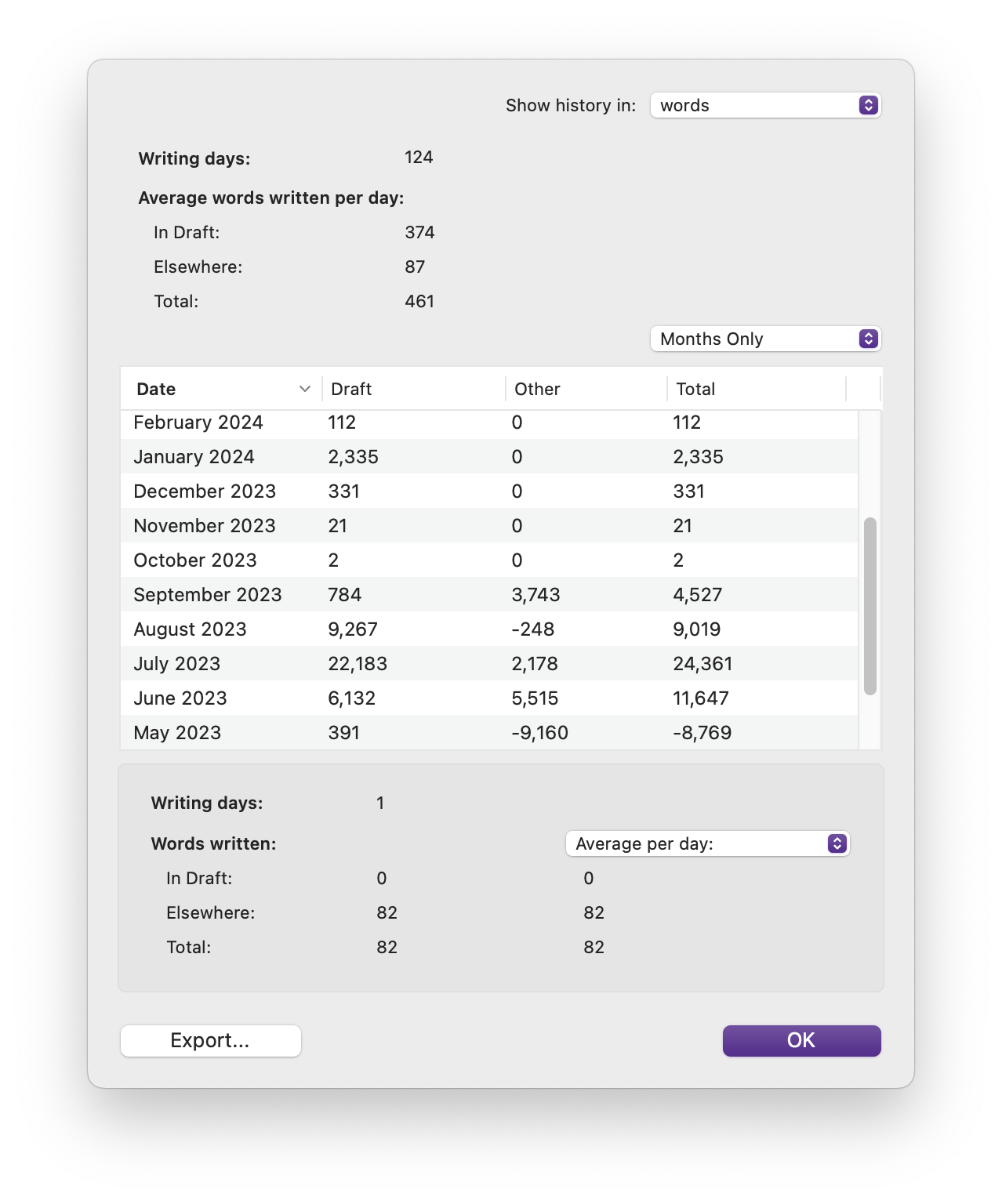
The different columns show the number of words in the draft, the words written in other folders within the Binder – the Research folder and any other folders not in the Draft folder – and the total. You can change the display by clicking the menu that says Months Only: you can choose Months and Days or Days Only.
From simple to detailed views of your project, these methods let you quickly see your word count and targets, if you set them, for any document or for your entire project.
Kirk McElhearn is a writer, podcaster, and photographer. He is the author of Take Control of Scrivener, and host of the podcast Write Now with Scrivener.